
Escanea Recibos y Exporta a Hojas de Cálculo Excel
Convierte recibos en datos estructurados en segundos. Exporta a CSV, abre en Excel y crea informes con tus propias fórmulas y tablas dinámicas.
Web signup, 14-day free trial, and direct export to your accounting workflow.
From Paper Receipt to Excel in 4 Steps
No more typing receipt data into spreadsheets by hand. Let AI do the extraction and get structured data in seconds.
Scan the Receipt
Take a photo on your phone, forward an email receipt, or upload a PDF or image file. Any receipt format works.
AI Extracts Every Field
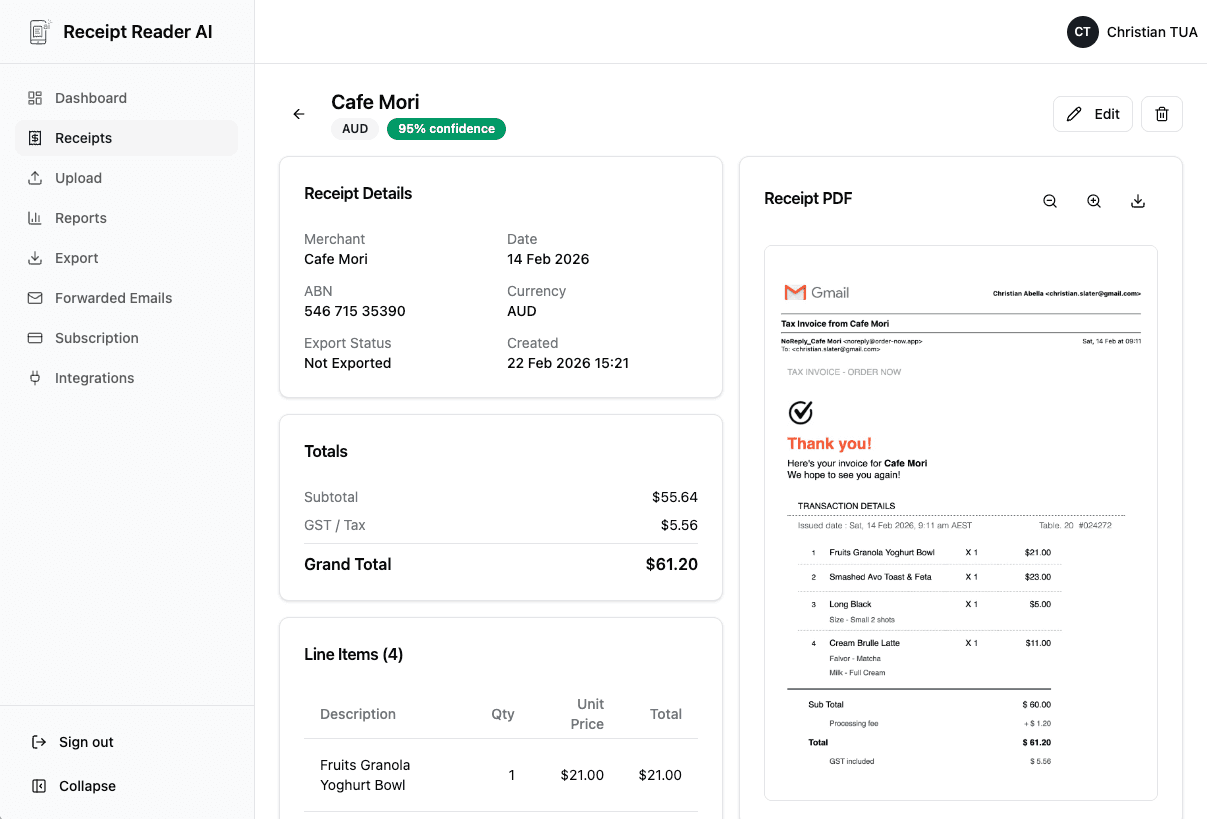
Our AI reads the receipt and pulls out the vendor, date, total, tax, payment method, line items, and category automatically.
Choose Your Columns
Select which data fields to include in your export and arrange them in the order your spreadsheet expects.
Open in Excel
Download the CSV file and open it in Excel, Google Sheets, or any spreadsheet application. The data is clean, typed, and ready to work with.
Better fit for finance workflows
Why Spreadsheet Users Choose Receipt Reader AI
If you prefer the flexibility of Excel over locked-in accounting software, this is the receipt scanner for you.
Decision points
Integration Features
Every feature is designed to give you clean, structured data that works perfectly in spreadsheets.
CSV and Excel Export
Export your scanned receipts as CSV files that open natively in Excel, Google Sheets, and every other spreadsheet application. Clean data, consistent formatting, zero reformatting needed.
Customizable Column Mapping
Choose which fields appear in your export and arrange them in the order your spreadsheet expects. Date first, then vendor, then amount, or whatever layout works for your workflow.
Pivot Table Ready Data
Exported data uses consistent categories, clean text, and proper number formatting. Drop it into an Excel pivot table to instantly analyze spending by vendor, category, month, or any dimension.
Multi-Sheet Export by Category
Export receipts grouped by expense category so each category gets its own section. Perfect for building monthly expense reports with category-level summaries and totals.
Date & Currency Formatting
Dates are exported in standard formats that Excel recognizes without parsing errors. Currency amounts include proper decimal formatting so SUM and other formulas work immediately.
Receipt Image Links
Each row in your export includes a link back to the original receipt image stored in your account. Click the link from Excel to view the source document for any transaction.
Objections and edge cases
Excel Receipt Scanner FAQ
Common questions about scanning receipts and exporting the data to Excel spreadsheets.
What format does Receipt Reader AI export in?
Receipt Reader AI exports your scanned receipts as CSV files, which open natively in Microsoft Excel, Google Sheets, LibreOffice Calc, and any other spreadsheet application. CSV is the universal format that works everywhere, and the structured columns make it ready for sorting, filtering, and building formulas immediately.
Can I customize which columns are exported?
Yes. The export includes all the data fields our AI extracts: date, vendor, amount, tax, category, payment method, and more. You can configure which columns appear in your export and in what order, so the CSV matches the layout of your existing spreadsheet exactly.
Does it work with Google Sheets too?
Absolutely. CSV files open directly in Google Sheets, so you can use Receipt Reader AI with either Excel or Google Sheets. We also offer a direct Google Sheets integration if you prefer your receipts to sync to a connected sheet automatically.
Can I export multiple receipts at once?
Yes. You can select any number of receipts and export them all in a single CSV file. Filter by date range, category, or vendor first, then export the filtered set. This is ideal for creating monthly expense reports or preparing data for tax filing.
Does it preserve the receipt images?
Every scanned receipt image is stored securely in your Receipt Reader AI account. The CSV export includes a link to each receipt image so you can reference the original source document directly from your spreadsheet. This creates a fully auditable trail from spreadsheet entry back to the actual receipt.
Can I build pivot tables from the exported data?
Yes. The exported data is structured with consistent columns and clean data types, which makes it perfect for pivot tables. Pivot by category to see spending by type, by vendor to see where your money goes, or by month to track expenses over time. No data cleaning required.
Start with the web workflow
Deja de Teclear Recibos en Hojas de Cálculo
Escanea con IA y obtén datos estructurados en Excel en segundos. Prueba gratis 14 días.
Start Free TrialNo credit card required. 14-day free trial.