
Scan Receipts and Streamline FreshBooks Expenses
Capture every receipt, let AI extract the details, and export clean expense data ready for FreshBooks. Tag expenses to clients, flag billable costs, and keep your books up to date without the manual work.
Web signup, 14-day free trial, and direct export to your accounting workflow.
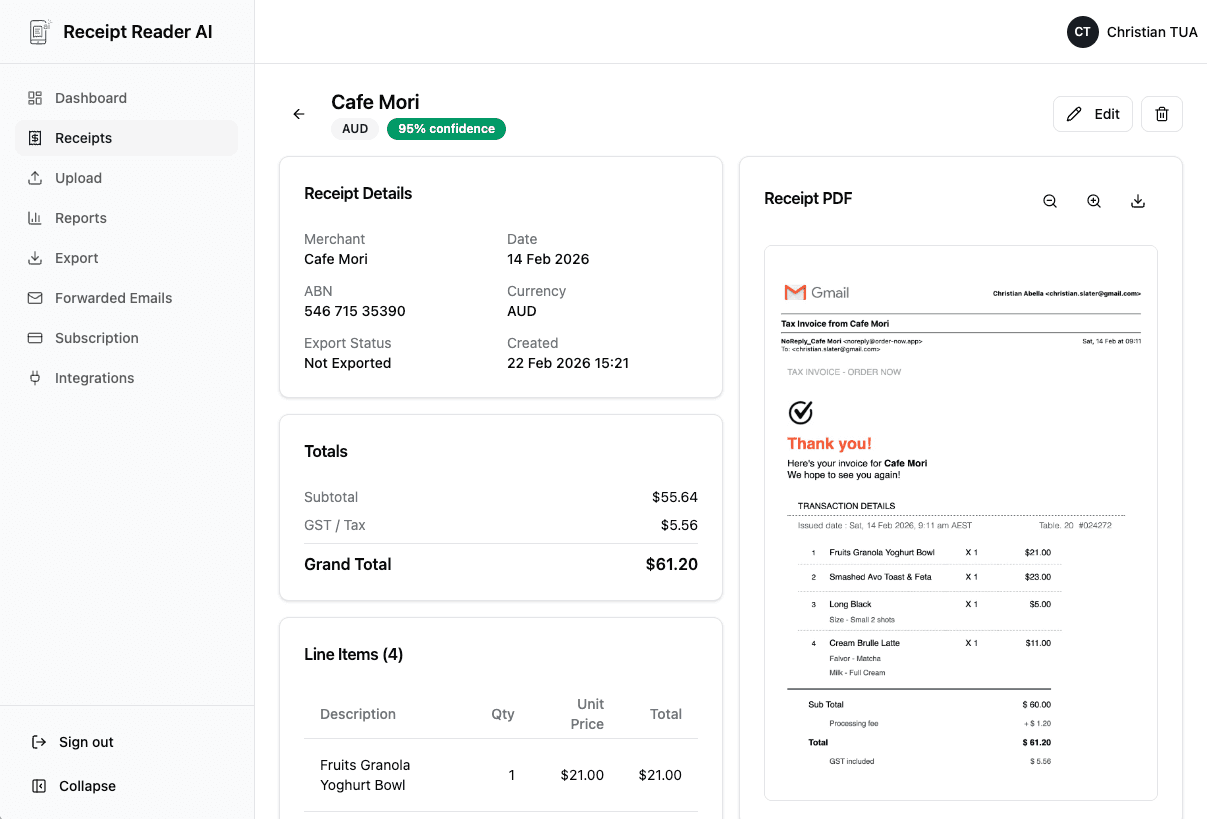
From Receipt to FreshBooks in 4 Steps
A fast, simple workflow that keeps your FreshBooks expenses accurate without tedious manual entry.
Capture the Receipt
Snap a photo on your phone after a purchase, forward an email receipt, or upload a PDF invoice from your computer.
AI Extracts Everything
Our AI reads the receipt and pulls out the vendor name, date, total amount, tax, payment method, and individual line items.
Tag Client & Category
Assign the expense to a FreshBooks category. Tag it to a client or project if the cost is billable or needs to be tracked separately.
Export to FreshBooks
Download the export file and import it into FreshBooks. Each expense appears with the correct vendor, amount, category, and client tag.
Better fit for finance workflows
Why FreshBooks Users Choose Receipt Reader AI
FreshBooks makes invoicing easy. Receipt Reader AI makes the expense side just as painless.
Decision points
Integration Features
Built for the way FreshBooks users manage their expenses, clients, and billing.
FreshBooks-Compatible Export
Export scanned receipts in the format FreshBooks expects for expense import. Vendor, date, amount, tax, and category fields are all mapped correctly.
Expense Category Mapping
Map your expense categories to match what you use in FreshBooks. The AI learns your preferences and auto-suggests the right category for each receipt.
Client & Project Tagging
Assign any receipt to a specific client or project. Track project costs accurately and identify billable expenses that should appear on your next invoice.
Tax Tracking
Sales tax, GST, and VAT amounts are extracted automatically from every receipt. FreshBooks receives clean tax data for accurate financial reporting.
Receipt Image Storage
Every scanned receipt image is stored securely alongside the extracted data. Keep a digital archive of all your expense documentation for audits and client disputes.
Billable Expense Flagging
Mark any receipt as a billable expense during scanning. When you export to FreshBooks, billable items are clearly identified so you can add them to client invoices immediately.
Objections and edge cases
FreshBooks Receipt Scanner FAQ
Common questions about scanning receipts and importing expense data into FreshBooks.
Does Receipt Reader AI connect to FreshBooks directly?
Receipt Reader AI exports your scanned receipts in a format compatible with FreshBooks expense import. You download the export and upload it into FreshBooks, where each expense appears with the correct vendor, amount, category, and date. This approach gives you full control to review the data before it enters FreshBooks.
Can I tag expenses to specific clients or projects?
Yes. When you scan a receipt, you can assign it to a specific client or project. This tag is preserved in the export, so when you import into FreshBooks, you can easily associate the expense with the right client for billing or for tracking project profitability.
Does it handle multiple currencies?
Absolutely. Our AI detects the currency on the receipt and extracts the amount in the original currency. FreshBooks handles multi-currency expenses natively, so the exported data includes the currency code alongside the amount for accurate foreign expense tracking.
Can I use it with FreshBooks expense reports?
Yes. Expenses imported from Receipt Reader AI flow into your FreshBooks expense reports just like manually entered ones. You can filter by category, date range, or client to generate reports. The receipt images are stored in Receipt Reader AI as backup documentation.
How does it handle billable expenses?
You can flag any scanned receipt as a billable expense and assign it to a client. When you export and import into FreshBooks, these flagged expenses are ready to be added to your next client invoice, ensuring you recover every cost that should be billed.
Is it better than using FreshBooks built-in receipt scanning?
Receipt Reader AI offers more powerful AI extraction that captures not just the total but individual line items, tax breakdowns, and payment methods. It also works across any receipt format and language, stores unlimited receipt images, and lets you batch process receipts before importing the cleaned data into FreshBooks.
Start with the web workflow
Make FreshBooks Expenses Effortless
Scan receipts, tag them to clients, and import clean data into FreshBooks. No more manual expense entry. Try it free for 14 days.
Start Free TrialNo credit card required. 14-day free trial.