
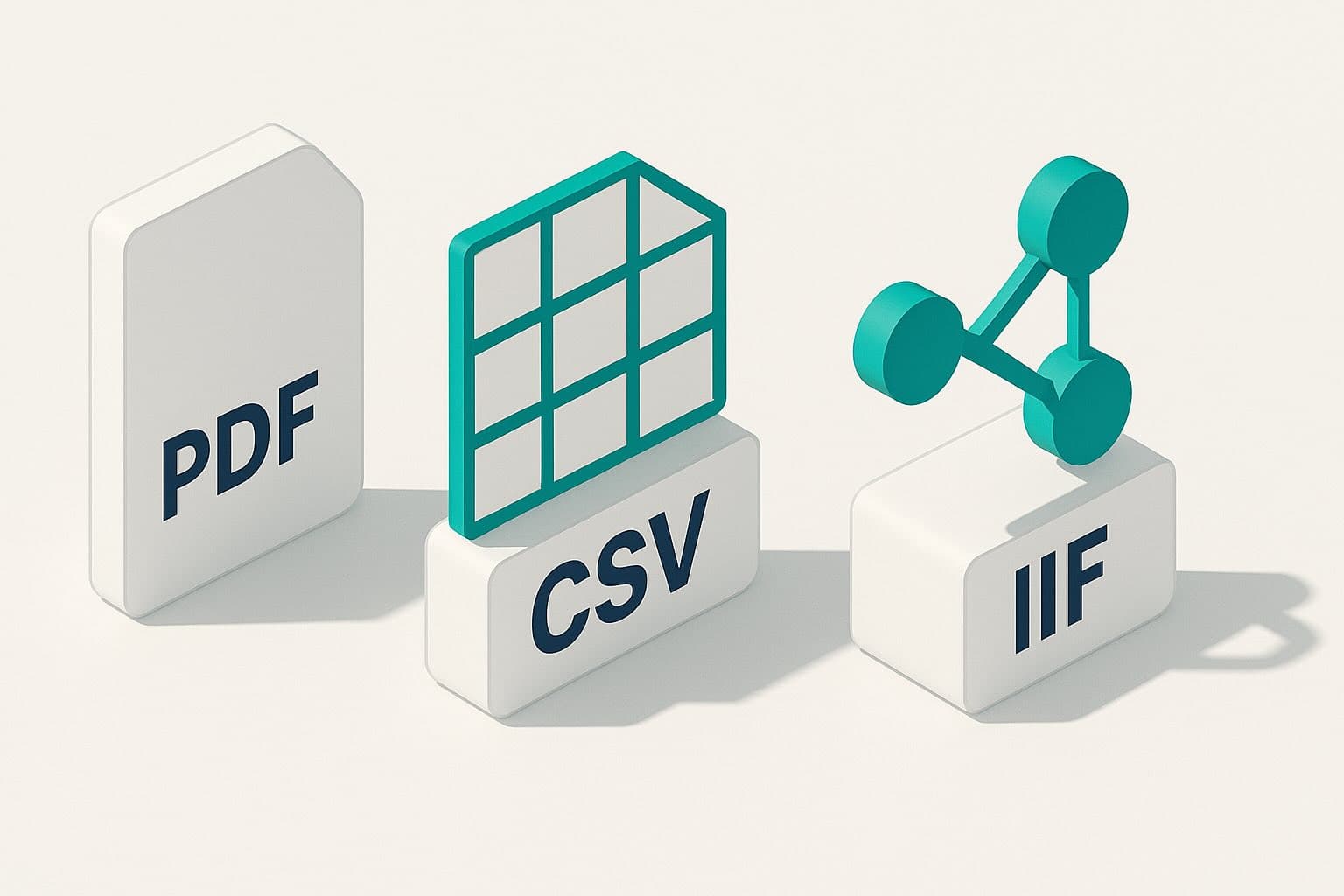
Exporting data isn't just a final step—it determines how easily your bookkeeper can reconcile and how well your team can analyze spend. Receipt Reader AI supports three core export types: PDF, CSV and IIF. Here's how to decide which one to use for each scenario.
PDF: human‑readable and audit‑ready
PDF exports shine when you need polished, shareable documents:
- Periodic expense reports for clients or managers
- Documentation for audits or grant compliance
- Packaged hand‑offs that include receipt images
In Receipt Reader AI, PDFs include a summary page, subtotals by category, and embedded receipt images for evidence. You can brand the header with your company name and export by custom date ranges.
When PDF is not ideal
PDFs aren't designed for data manipulation. If your next step is sorting, filtering or pivoting, prefer CSV.
CSV: flexible and analysis‑friendly
CSV is the universal language for spreadsheets and BI tools. Use it when you need to:
- Build charts and dashboards in Google Sheets or Excel
- Merge with bank feeds or card statements
- Clean and transform data before importing elsewhere
Receipt Reader AI lets you pick the fields you want and map column order. That means your spreadsheet templates remain stable across exports.
Tips for clean CSVs
- Lock your category names to avoid near‑duplicates (e.g., "Meals" vs "Meal").
- Include unique IDs so updates don't create duplicates downstream.
- Keep currency codes explicit when dealing with multi‑currency spend.
IIF: purpose‑built for QuickBooks Desktop
IIF (Intuit Interchange Format) is ideal when you're importing directly into QuickBooks Desktop. It preserves structure like accounts, classes and tax codes.
Use IIF when:
- Your accountant prefers QuickBooks Desktop imports
- You want to avoid manual re‑typing of line items
- You maintain a chart of accounts that must match exactly
Receipt Reader AI generates a QuickBooks‑friendly IIF with the accounts you map. Run a small import first to validate accounts and tax codes, then process the full month.
Which format should you choose?
- Need a report for humans? Choose PDF.
- Need data for analysis or generic imports? Choose CSV.
- Working with QuickBooks Desktop? Choose IIF.
Many teams use two outputs: a PDF for sign‑off and a CSV/IIF for the accounting system. Because exports take seconds, you don't have to choose just one.
Pro tip: automate your cadence
Create a simple monthly routine: capture receipts daily, review flags weekly, and export on the last business day. Consistency is what keeps month‑end painless.
Questions about your export setup? Reach us at support@receiptreaderai.app—we'll help you pick the right format for your workflow.