
Scan Receipts and Export to QuickBooks in Minutes
Stop typing receipt data into QuickBooks by hand. Scan any receipt, let AI extract the details, and export a QuickBooks-ready CSV with categories that match your chart of accounts.
Web signup, 14-day free trial, and direct export to your accounting workflow.
From Receipt to QuickBooks in 4 Steps
A streamlined workflow that eliminates the manual data entry bottleneck between your receipts and QuickBooks.
Capture the Receipt
Snap a photo on your phone, forward a digital receipt from email, or upload a PDF or image file from your computer.
AI Extracts the Data
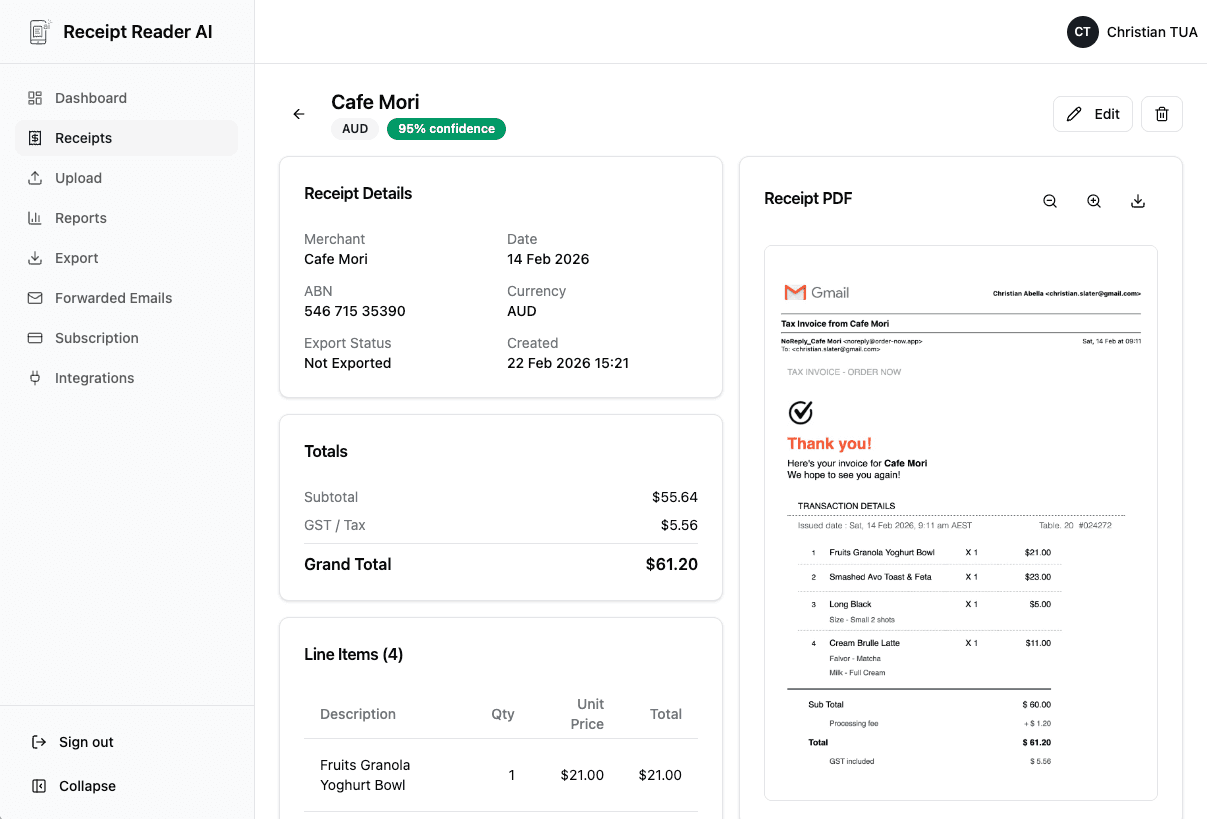
Our AI reads the receipt and pulls out the vendor, date, total, tax amount, payment method, and individual line items.
Map to QB Categories
Assign each receipt to an expense category that matches your QuickBooks chart of accounts. The AI suggests the best match automatically.
Export & Import to QB
Download a QuickBooks-ready CSV file and import it directly. Transactions appear in QuickBooks with the correct vendor, amount, and category.
Better fit for finance workflows
Why QuickBooks Users Choose Receipt Reader AI
Manual receipt entry into QuickBooks is tedious and error-prone. Here is how we make it better.
Decision points
Integration Features
Every feature is designed to make the connection between your receipts and QuickBooks as smooth as possible.
QuickBooks-Compatible CSV Export
Export receipts in the exact CSV format QuickBooks expects. Date, vendor, amount, category, and tax fields are all mapped correctly for seamless import.
Chart of Accounts Mapping
Customize your expense categories to match your QuickBooks chart of accounts. The AI learns your preferences and suggests the right category for each receipt.
Multi-Currency Support
Scan receipts in any currency. The extracted amounts include the original currency so QuickBooks can handle foreign transactions and exchange rates correctly.
Tax Code Categorization
Sales tax, GST, and VAT are extracted automatically and broken out as separate fields. QuickBooks receives clean tax data for accurate reporting and compliance.
Bank Feed Matching Ready
Exported transactions include precise vendor names and amounts that match what your bank feed shows, making QuickBooks reconciliation faster and more accurate.
Receipt Image Attachment
Every scanned receipt image is stored alongside the extracted data. Attach receipt images to QuickBooks transactions so you always have source documentation available.
Objections and edge cases
QuickBooks Receipt Scanner FAQ
Common questions about scanning receipts and importing them into QuickBooks.
Does Receipt Reader AI integrate directly with QuickBooks?
Receipt Reader AI exports QuickBooks-compatible CSV files that you can import directly into QuickBooks Online or Desktop. The export format matches the fields QuickBooks expects, including date, vendor, amount, category, and tax, so the import is seamless with no manual reformatting required.
Can I map categories to my QuickBooks chart of accounts?
Yes. Our AI auto-categorizes receipts into common expense categories, and you can customize these to match your QuickBooks chart of accounts exactly. When you export, the categories align with the account names in your QuickBooks file, so transactions land in the right place.
Does it handle sales tax on receipts?
Absolutely. Our AI extracts the tax amount from every receipt automatically. When you export to QuickBooks, the tax is broken out as a separate field so QuickBooks can track your input tax credits and sales tax liability accurately.
Can my bookkeeper use it to manage my receipts?
Yes. With our Practice Manager feature, your bookkeeper can be invited to your account to review, approve, and export receipts on your behalf. They see your receipts in their own dashboard and can export everything directly to QuickBooks without needing your login.
How many receipts can I process at once?
Snap photos on the go, forward email receipts, or upload images and PDFs from the web app, one file at a time. Our AI processes them all and prepares a single QuickBooks-ready export file containing every transaction.
Does it work with both QuickBooks Online and QuickBooks Desktop?
Yes. The CSV export format is compatible with both QuickBooks Online and QuickBooks Desktop. QuickBooks Online supports direct CSV import through Banking > Upload Transactions, while Desktop users can use the import wizard.
Start with the web workflow
Stop Typing Receipts Into QuickBooks
Scan your receipts, let AI do the data entry, and import clean transactions into QuickBooks in minutes. Try it free for 14 days.
Start Free TrialNo credit card required. 14-day free trial.